
Simple step-by-step instructions
How to update your Khaya Kos website
Use edit mode to change products, photos and prices, manage Saturday stock, and open or close the live market.
Use one phone or computer at a time, make sure it is connected to the internet, and keep the owner password private.
Sign in
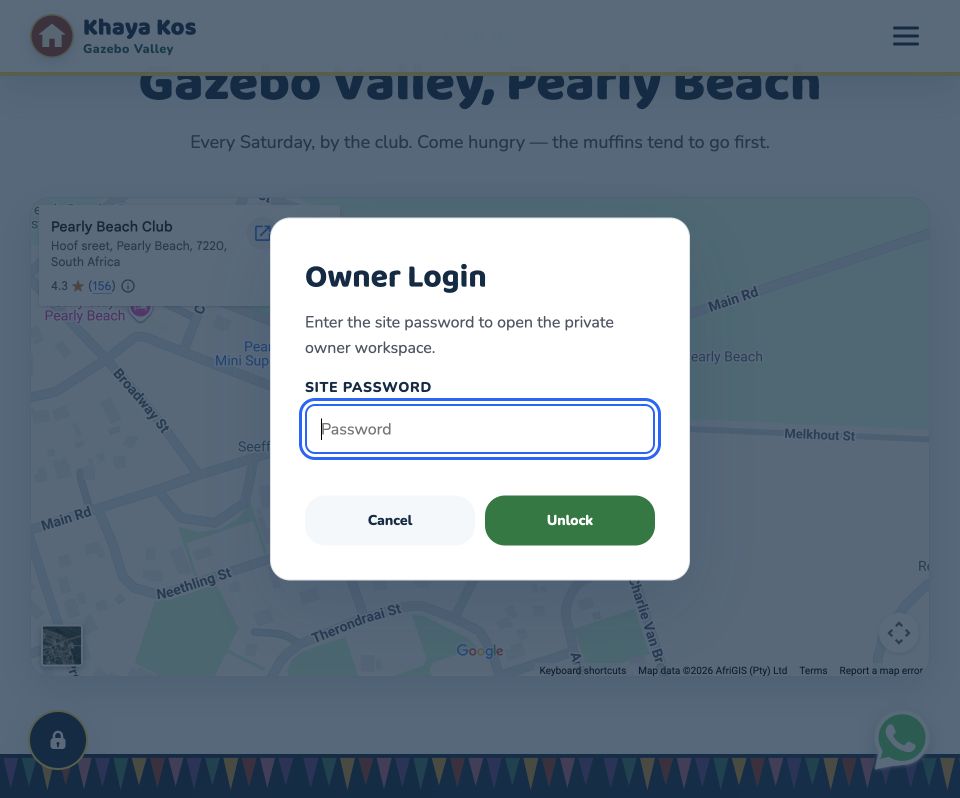
Open the owner workspace
- Open the Khaya Kos website.
- Tap the lock button near the bottom-left corner.
- Enter the owner password and tap Unlock.
Tip: If another phone is already editing, the website will ask before moving edit control to this device.
Choose a workspace
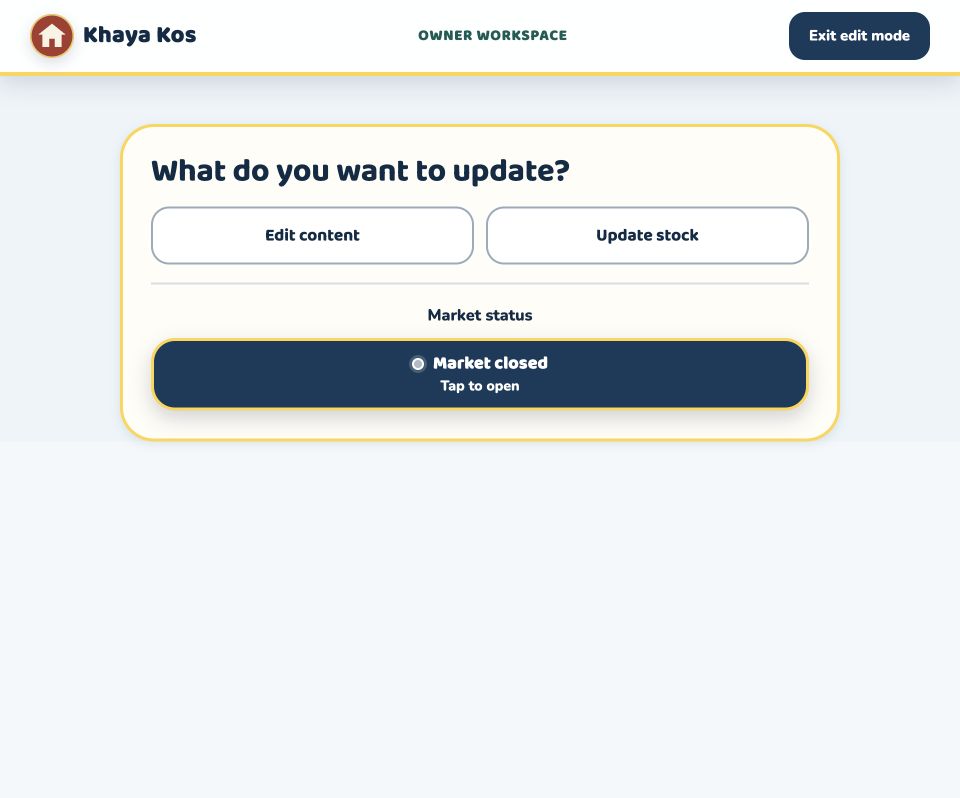
Choose what you want to update
- Edit content changes product names, descriptions, prices and photos.
- Update stock changes Saturday market quantities.
- Market open / closed changes what visitors see immediately.
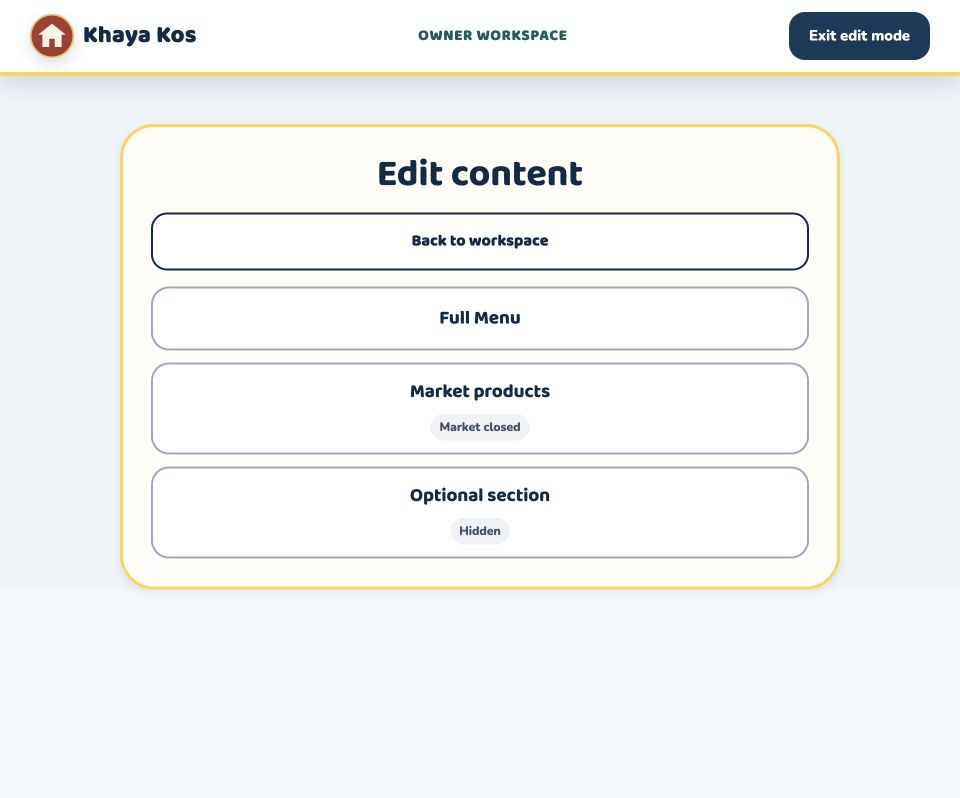
After tapping Edit content, choose the section you want:
- Full Menu for made-to-order products.
- Market products for Saturday stall products.
- Optional section for the extra product section.
Edit an existing product
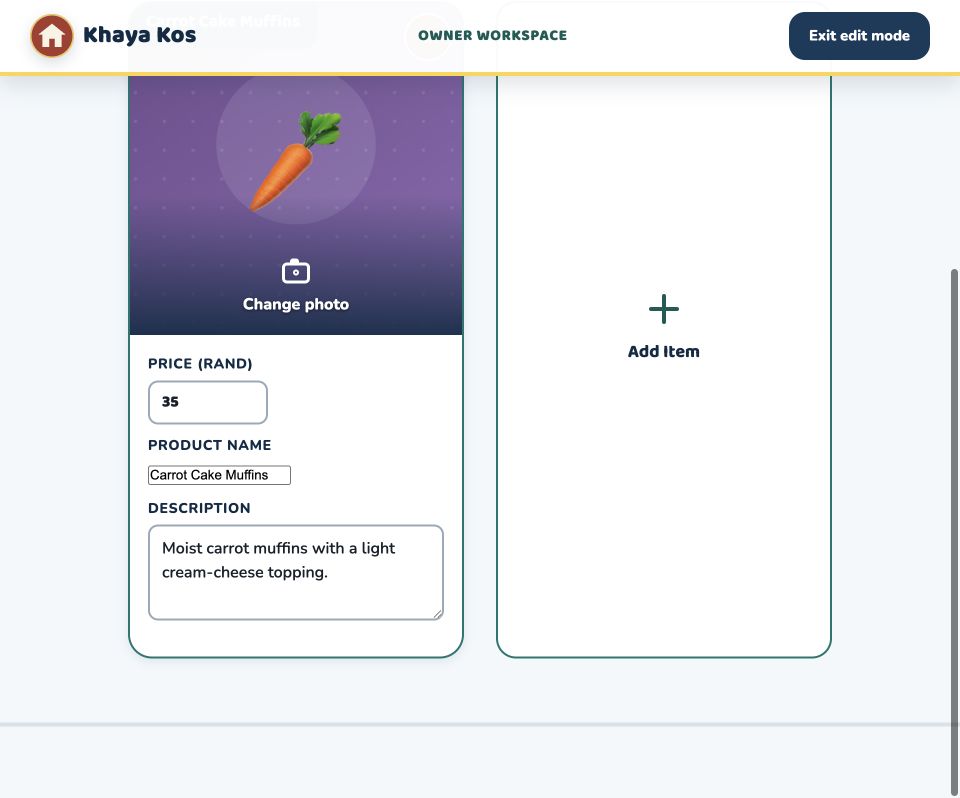
Change the details or photo
- Tap the field you want to change: price, product name, or description.
- Type the new information, then tap outside the field. The change saves automatically.
- To replace the picture, tap Change photo, choose a picture, adjust the square crop, and accept it.
Important: Wait for any saving or connection message to clear before closing the page.
Add or remove products
Keep the menu up to date
To add a product
- Tap Add new item at the top, or the Add Item card.
- Add a photo, product name and description. Price and stock are optional.
- Tap Add product. It becomes live only after this button is tapped.
To remove a product
- Tap the x button on the product picture.
- Check the product name in the confirmation window.
- Confirm the removal. This takes effect immediately and cannot be undone.
Saturday market
Open the market and update stock
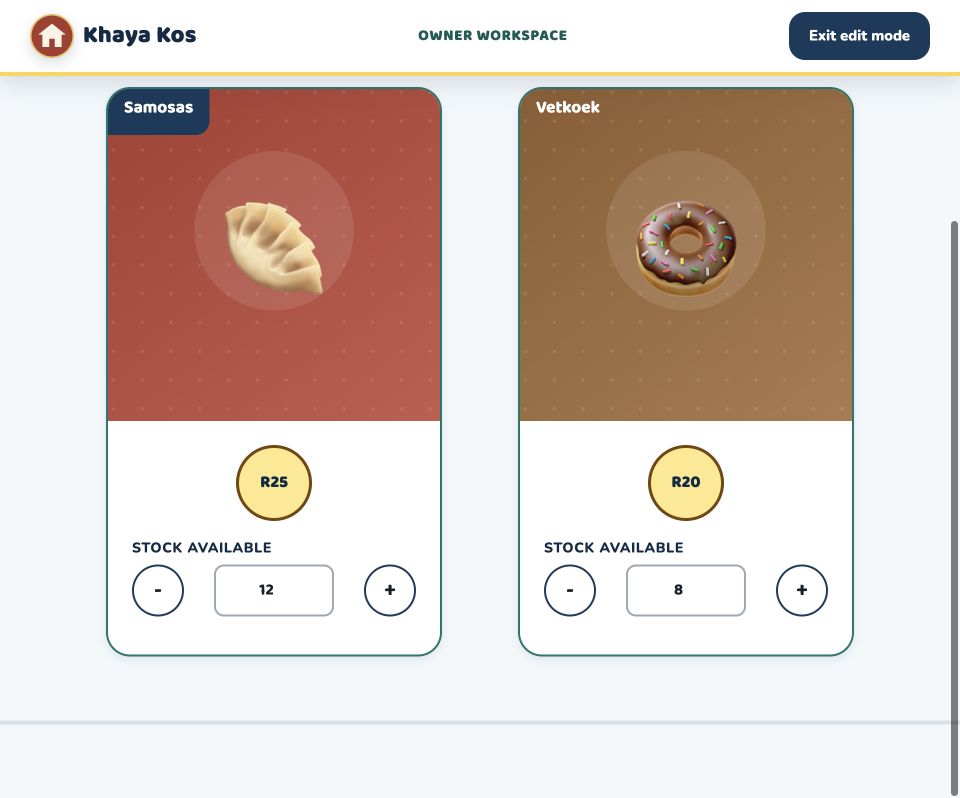
- From the owner workspace, tap Update stock.
- Use + to add one item or - when one sells. You may also type the quantity.
- Tap Market closed to open the live market. Visitors can then see the products and remaining stock.
- At the end of the market, tap Market open to close it.
Tip: Quick stock taps are grouped together. Give the website a moment to finish syncing before you leave this screen.
Optional section
Show, hide, or rename the extra section
- Choose Edit content, then Optional section.
- Tap the visible/hidden control to show or hide the whole section immediately.
- Tap Edit section text to change its navigation label, heading or description.
- Tap Save text when finished.
When you are done
Tap Exit edit mode in the top-right corner. Open the normal website and check that the result looks right.
If the connection message stays on screen, do not repeat the change. Check the internet connection first, then try again.